Joymore changelog
Joymore 3.0: Desk, Coordination, Collaboration, Analytics, Appovals.
Feature
Product Release
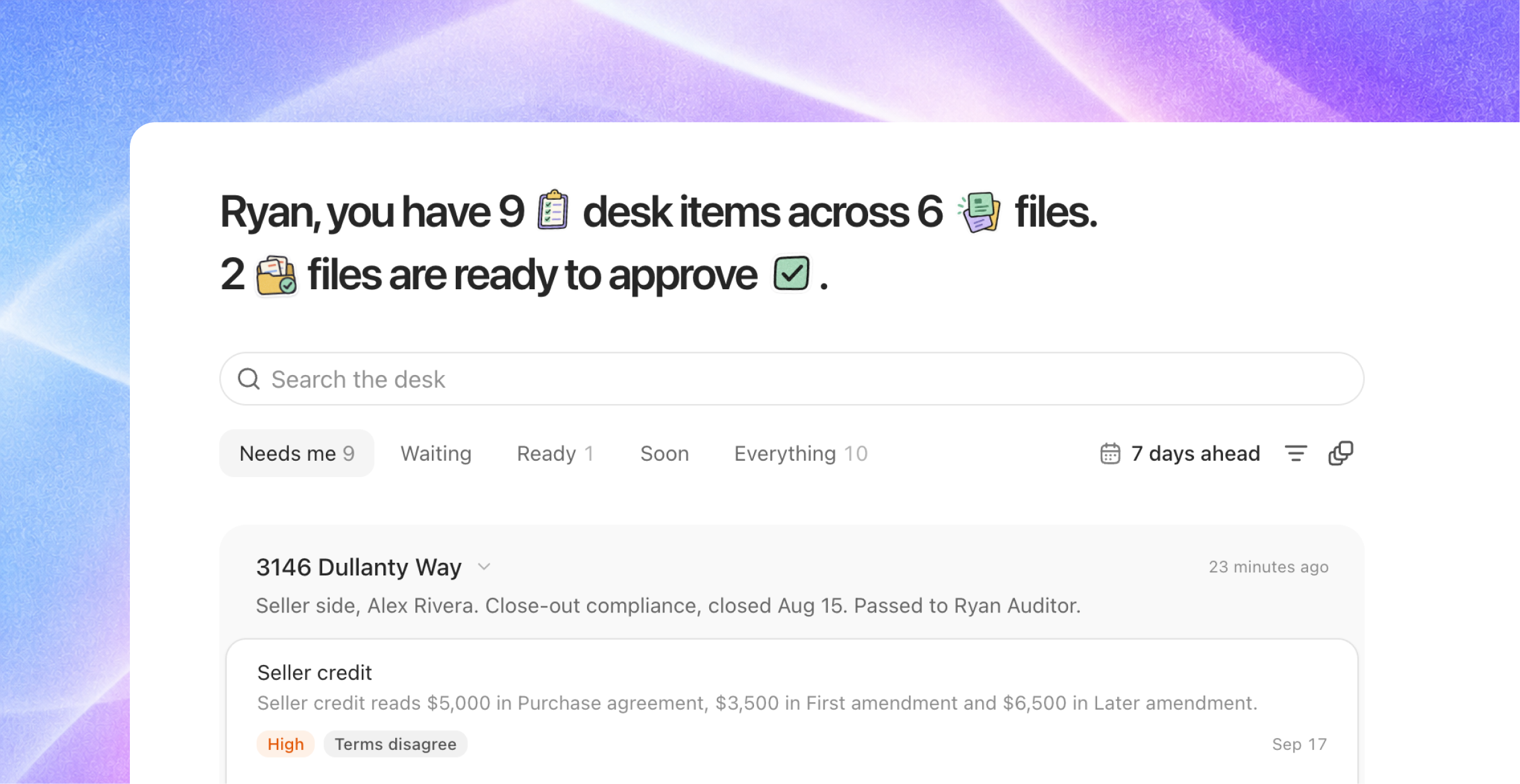
Joymore now works the way a compliance desk does
When you open Joymore, the first thing you see is your Desk. It lists every decision that is waiting on you, across all of your files, in one place. Behind it there is a rebuilt file page, transaction coordination for every brokerage, issue tiers that tell you what actually blocks a closing, and a new Analytics section. This is the largest release since launch. Everything below is already on, and there is nothing to set up. Click What's new in the sidebar for a short tour of each new screen.
The Desk is your home page
One list for everything that needs a person. Every open task on every file you can see is one row on the Desk. Rows are grouped by file, and the file that closes soonest is at the top.
Read the list through a lens. A lens is a filter. Needs me shows what only you can do. Waiting shows what is waiting on a teammate or on someone outside the brokerage, like escrow or the other agent. Ready shows files that are ready for the broker to approve. Soon shows what is coming up in the next few days. Everything shows it all.
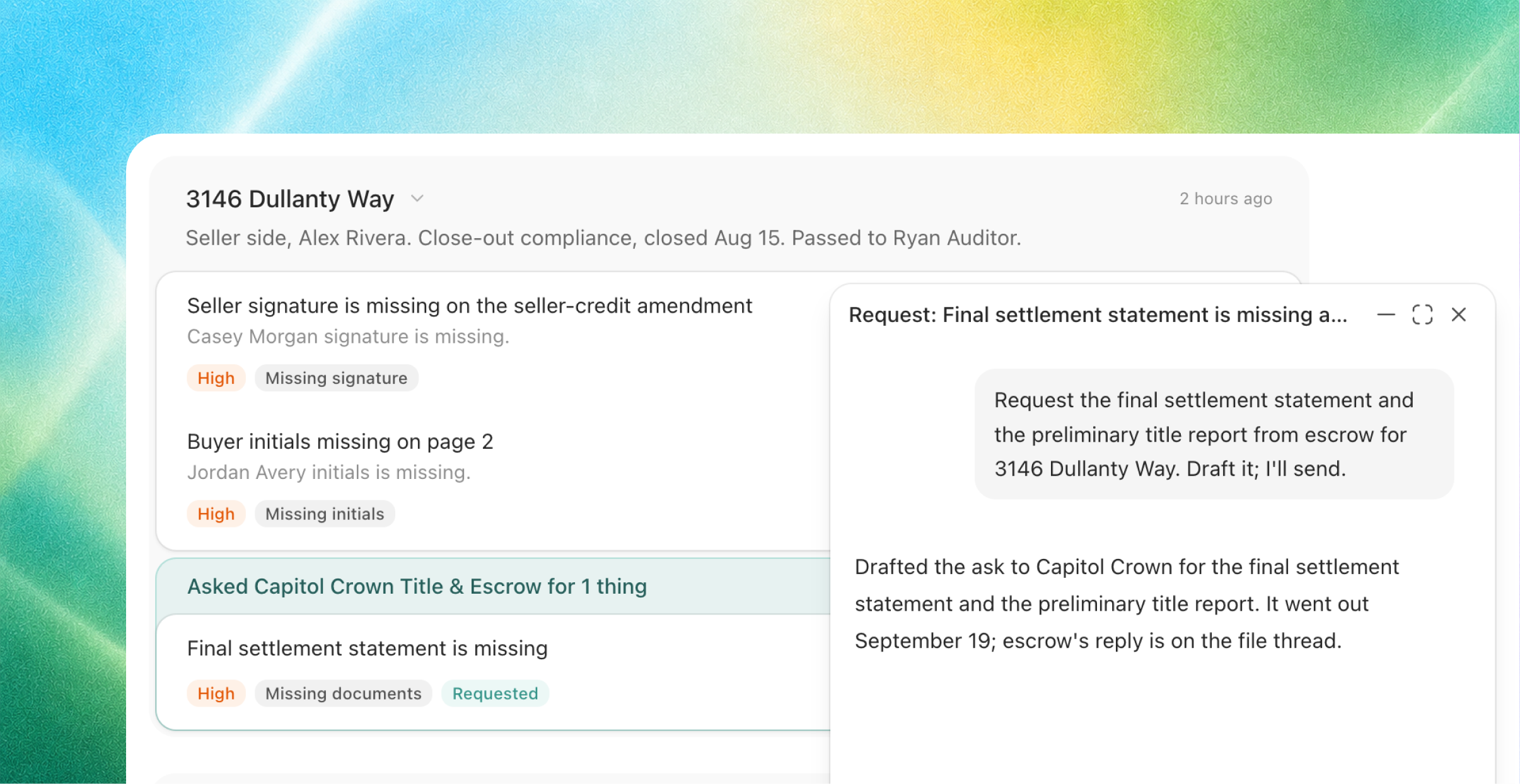
The action is right on the row. Each row tells you what needs to happen and gives you the button to do it: approve, ask someone, waive it, mark it done, or request the paper. Clicking the button does the work right away. You only need to open the file when you want to read the documents.
Ask once for everything one person owes you. When several rows are waiting on the same person, they fold into one ask, for example "Ask Elena Park (escrow) for 3 things." Joymore writes the message for you inside the row. You read it and send it. Joymore never sends anything on its own. The rows then wait together until the reply comes in.
A new file page
Status and Stage. Every file now shows two things at the top. Status is where the deal is: Active, Under contract, Closed, Canceled, or Expired. Stage is where the brokerage's work on the file is: Coordinating, Pre-close check, Close-out compliance, Approved, On hold, or Ended. Under them, one sentence says which side you represent, what stage the file is in, the next date that matters, what is still owed, and who is holding the file right now.
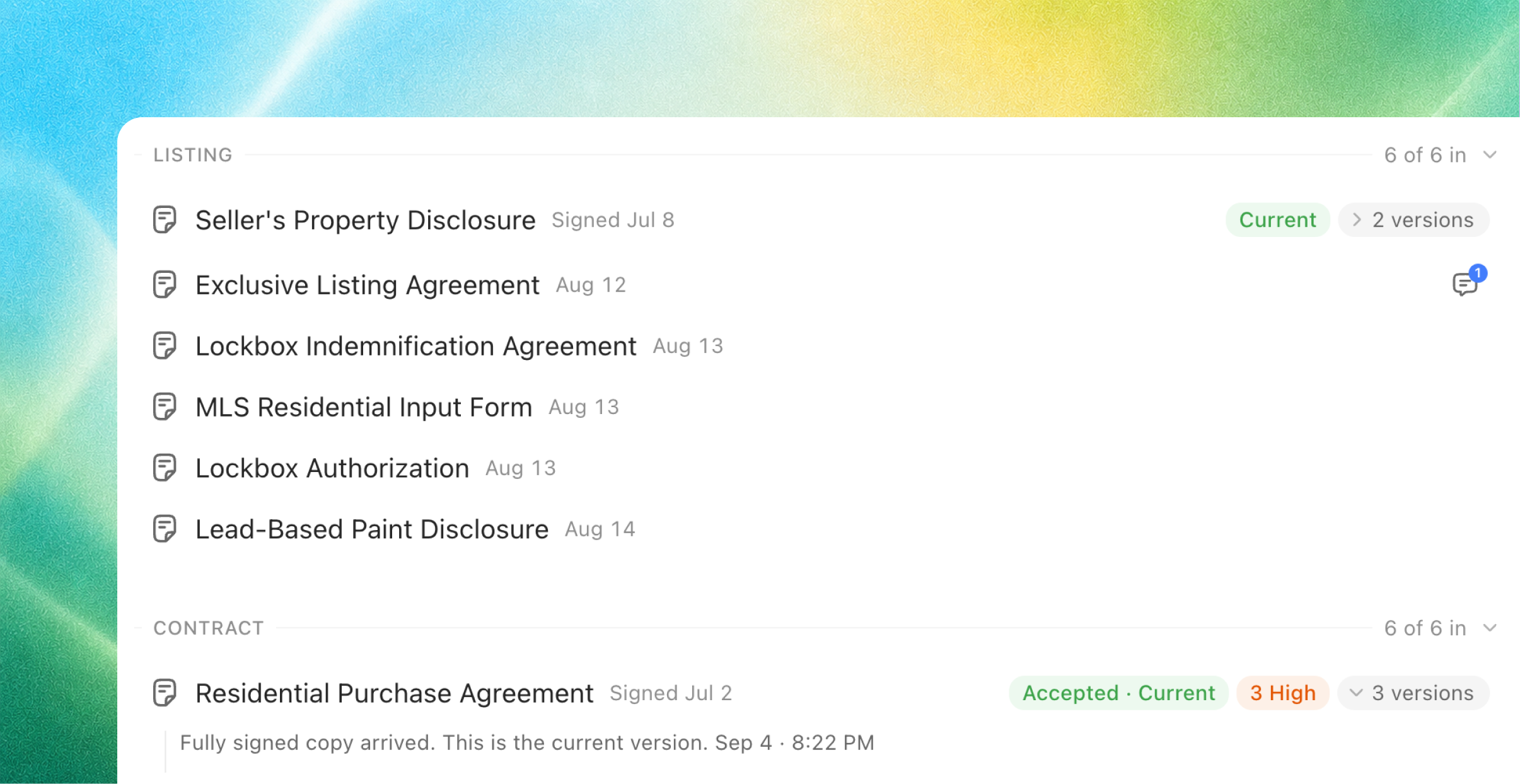
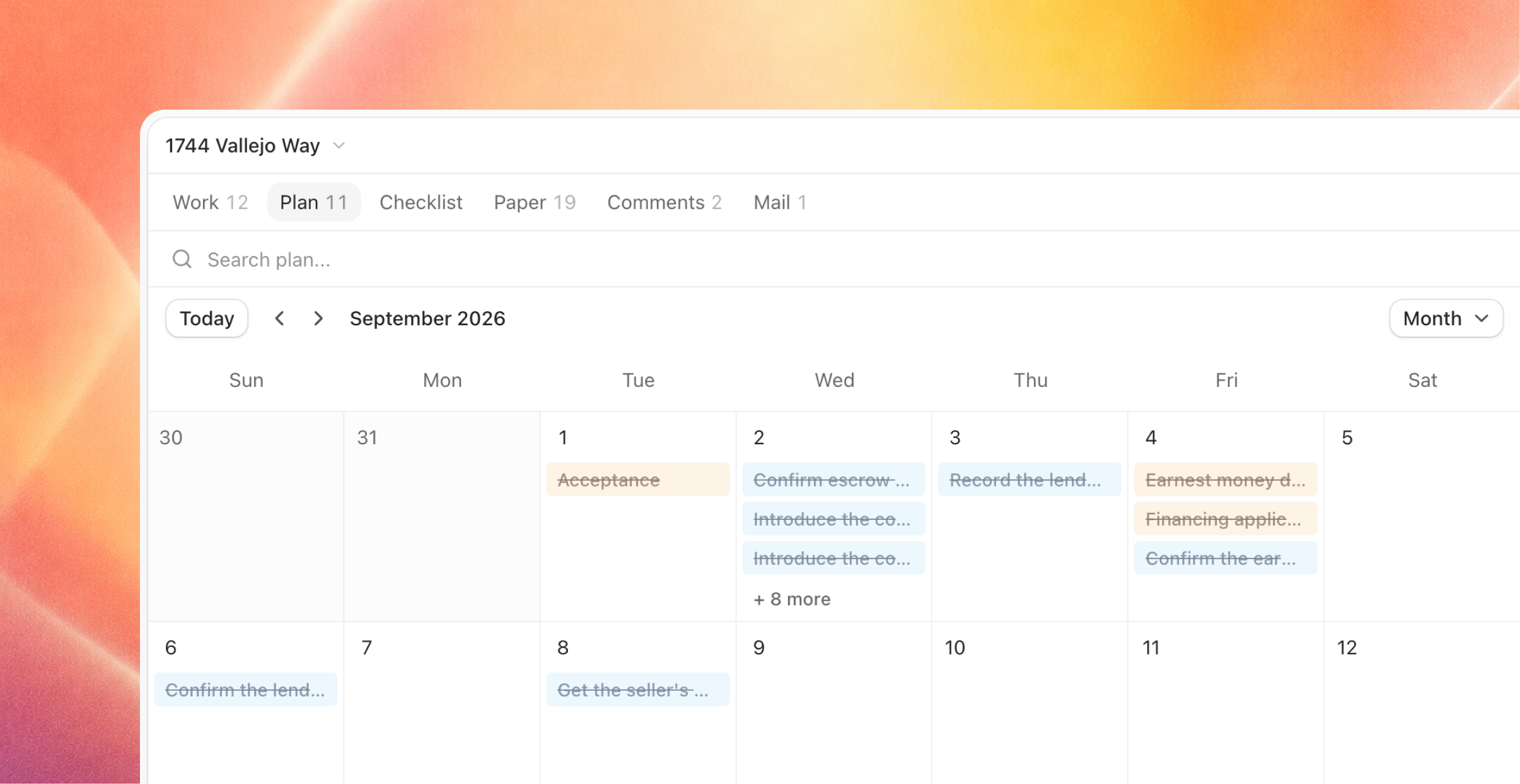
Six views in the side rail. Work, Plan, Checklist, Paper, Comments, and Mail. Paper groups the documents by the phase of the transaction they belong to, and shows what has come in and what is still needed. You can drop a document anywhere on the page and Joymore files it for you.
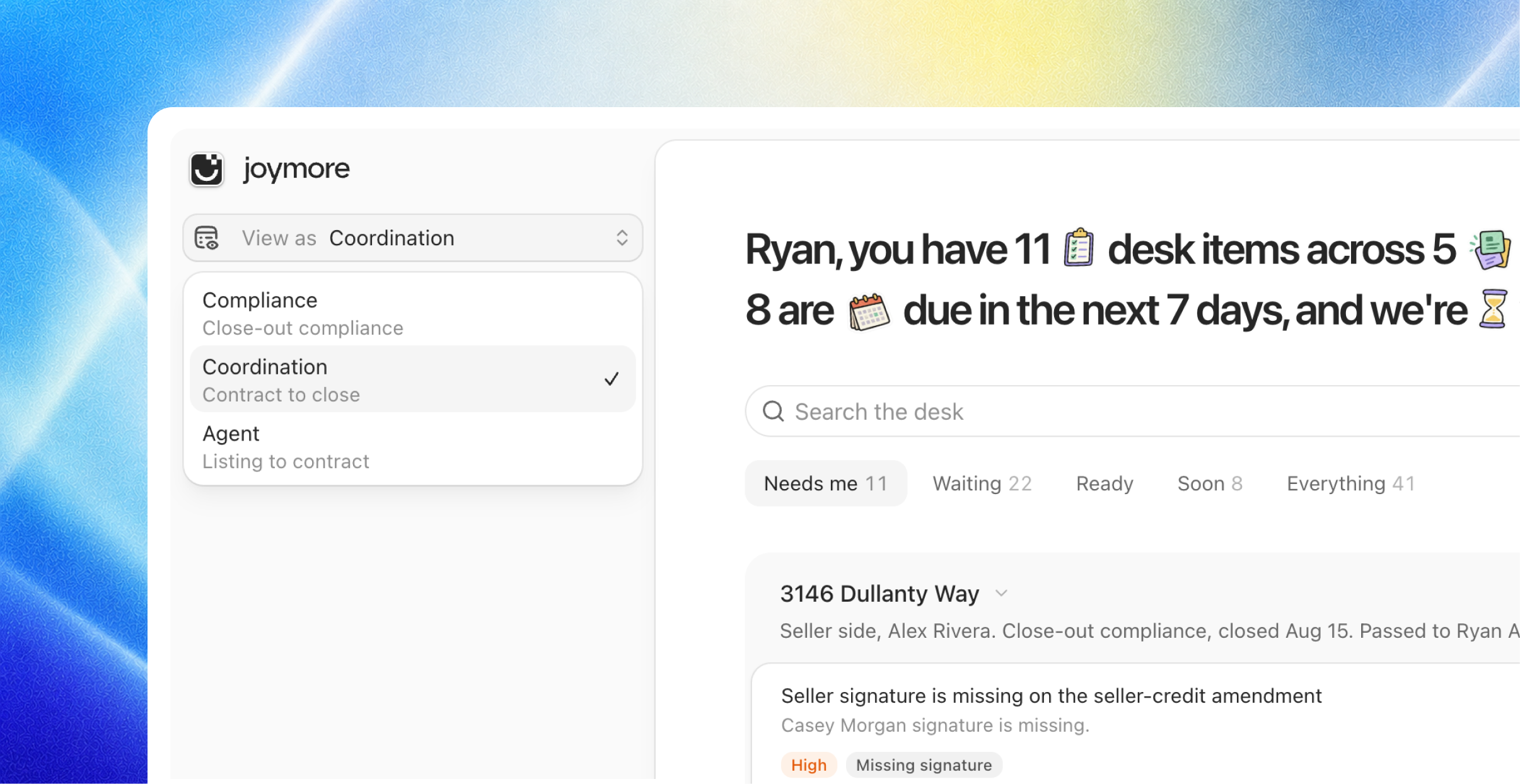
View as. You can look at the same file as Compliance, as Coordination, or as Agent. Each view shows the work that belongs to that job.
Analytics
Your brokerage's numbers, live. Analytics opens on a dashboard for your brokerage: how many files are open, where each one is in the pipeline, what has closed, and what commission is coming. The numbers are computed fresh each time you look, and you only ever see files you are allowed to see.
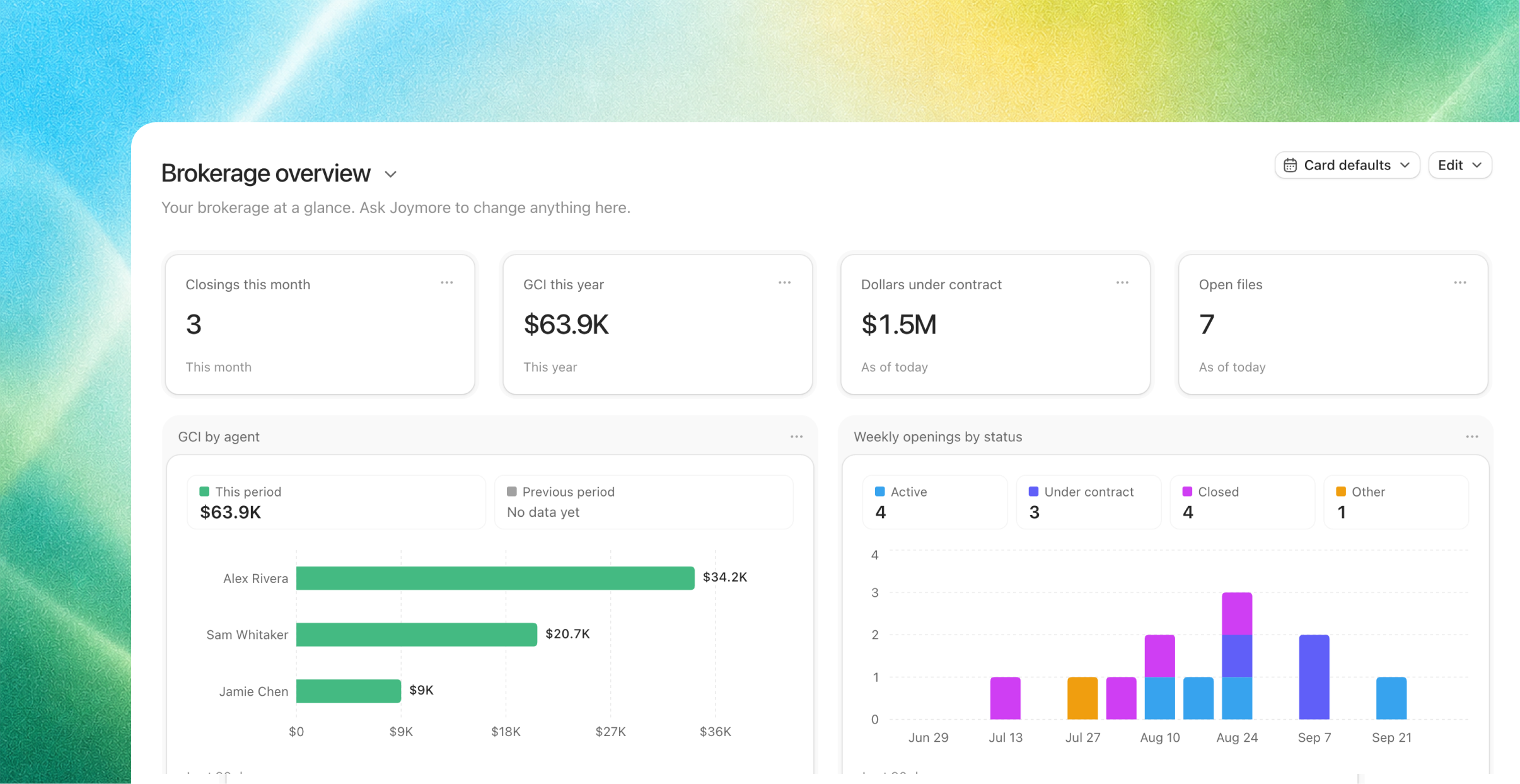
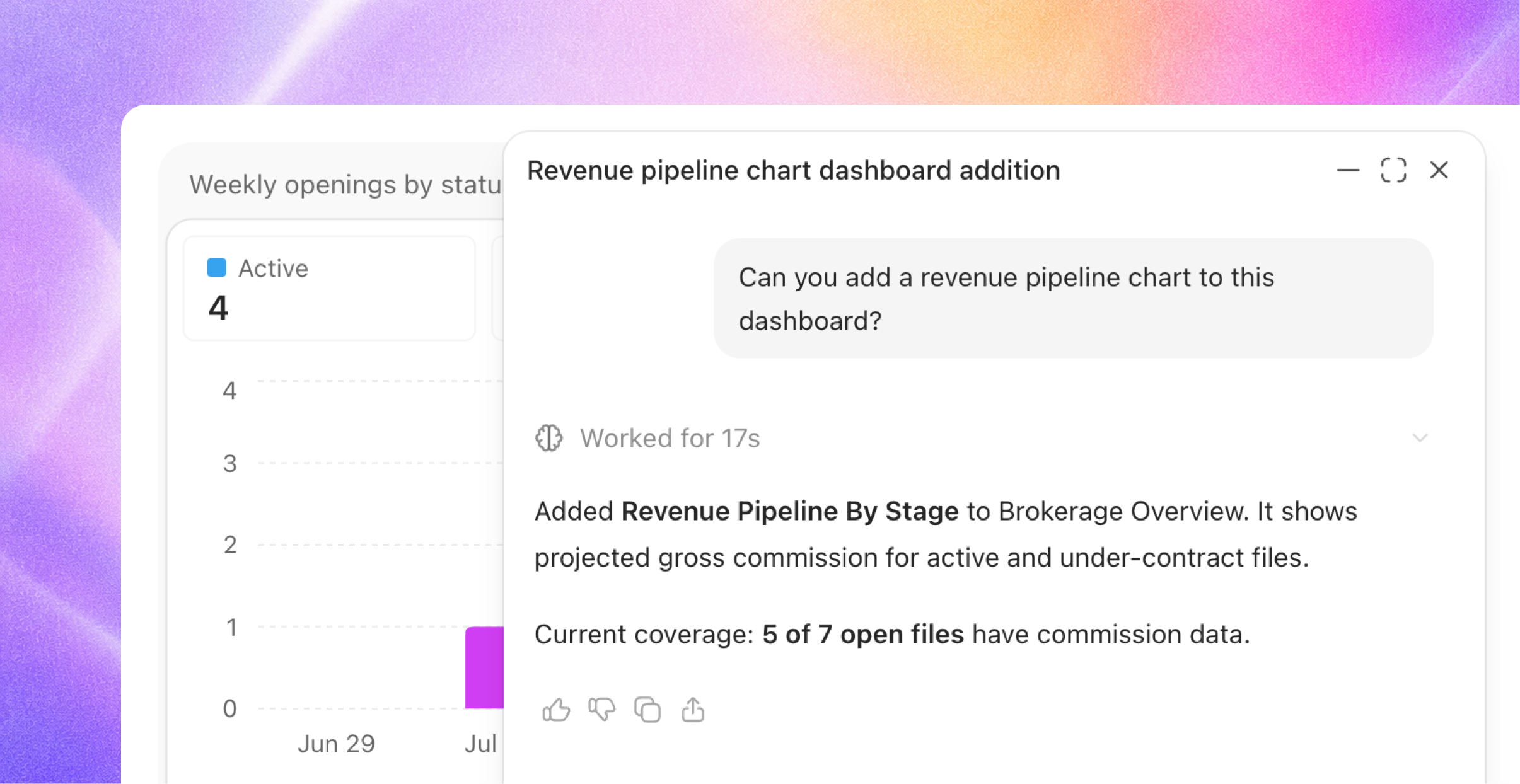
Build a dashboard by asking. Tell Joymore what you want to see, in plain words, and it builds the charts. You can change any tile by chatting, pick the chart type, the time period, and what to compare it to, then save the dashboard and share it with your team.
Issue tiers, review depth, and cures
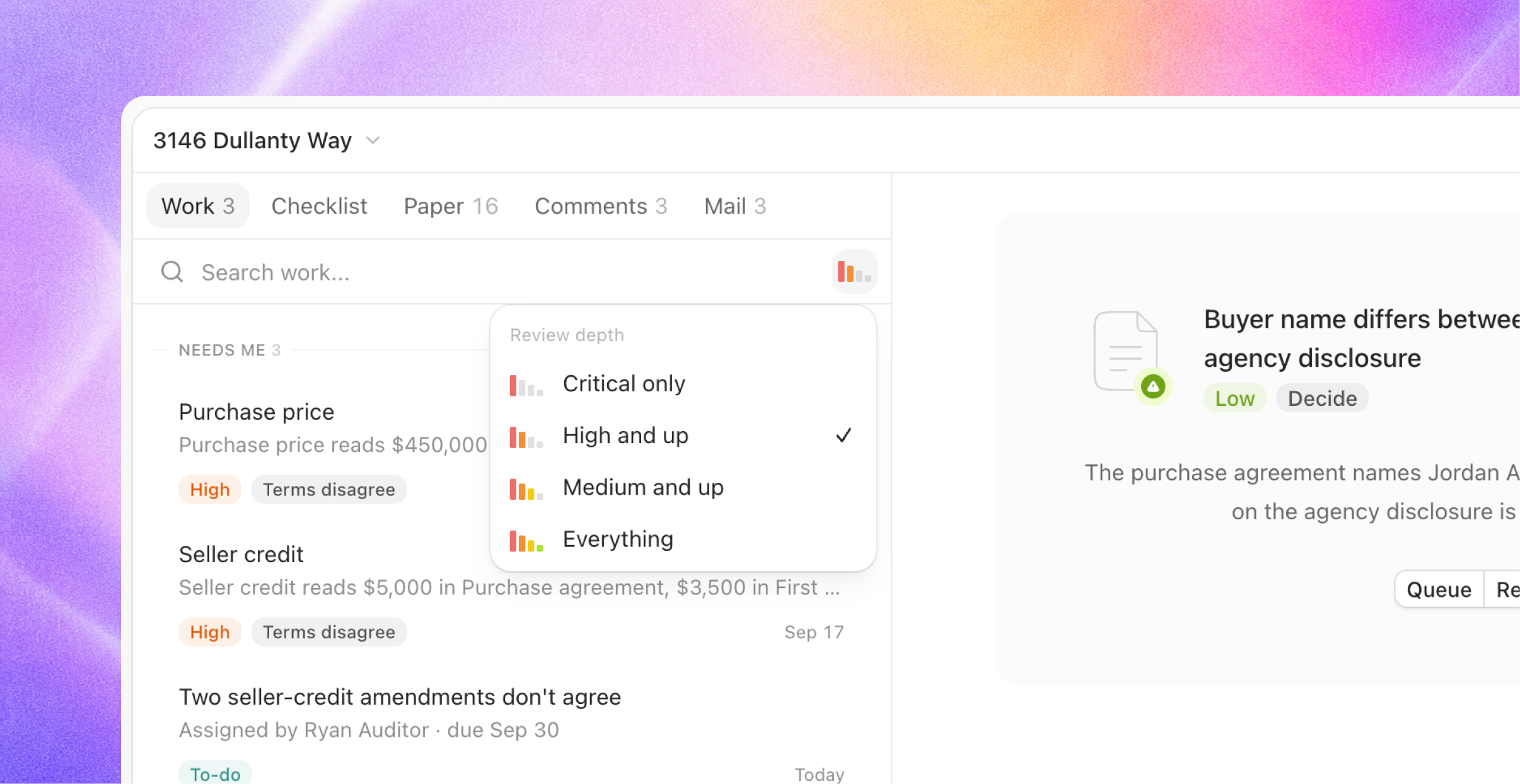
Every issue has a tier. When Joymore finds a problem on a file, it gives the problem a tier: Critical, High, Medium, or Low, with a one-sentence reason. Critical and High are only used for problems that would stop the closing or stop an agent from being paid.
Choose how deep you want to look. Under Settings > Compliance, pick Critical only, High and up (the default), Medium and up, or All. Problems below the level you pick are still recorded, but they are folded out of the way.
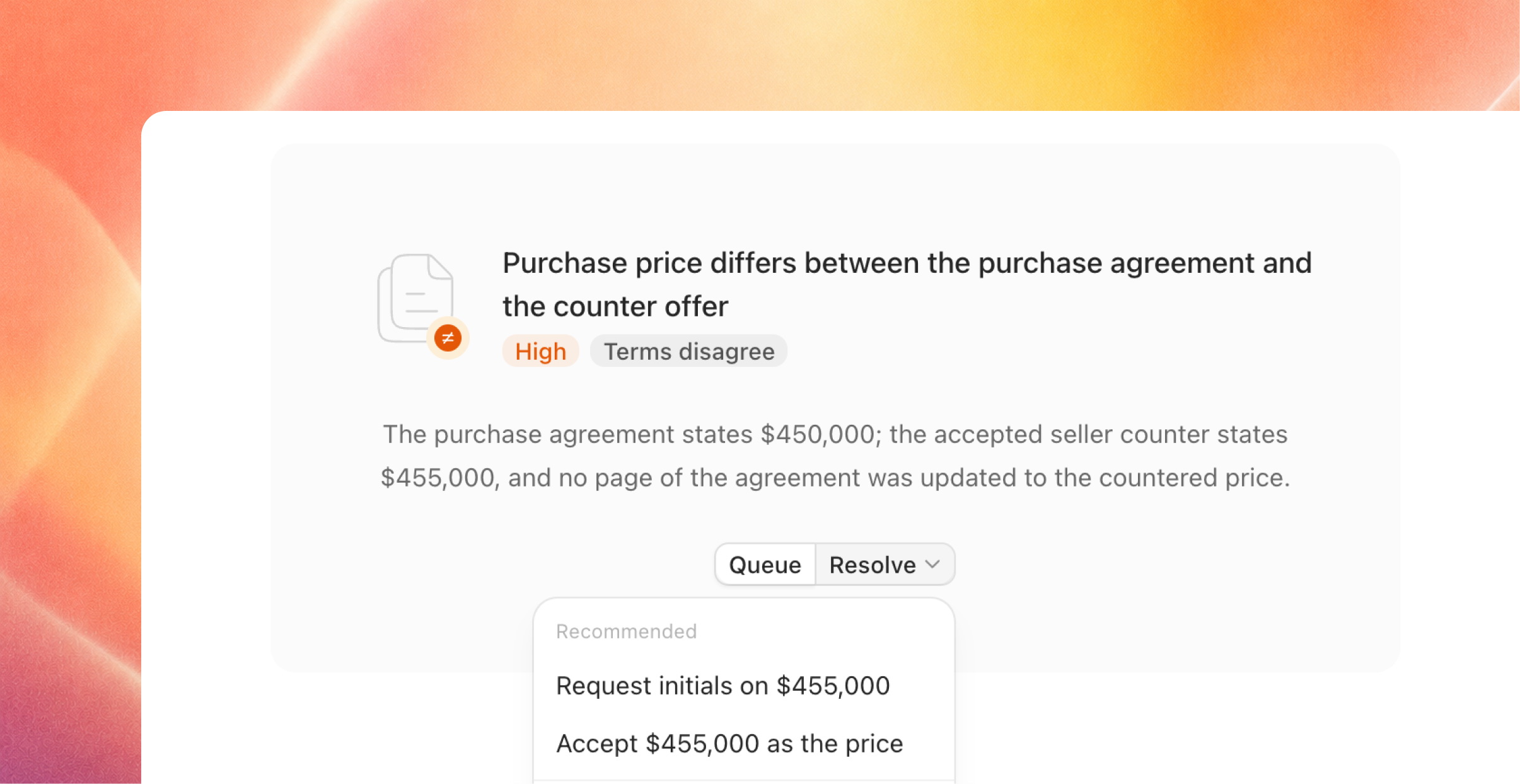
The button is the fix. Each issue offers the thing that would fix it: Request it, Upload it, Already have it, Request a correction, It's correct, or Update the record. The old "Confirm" button is gone.
No duplicates. When the same problem shows up more than once, Joymore folds the copies together, so you see it once.
Every file, read again
Joymore has read every document on every file again, using the new reviewer. Each upload was filed with its original arrival date, split into the individual forms inside it, and matched to the checklist from scratch. Your arrival dates, file history, people, key dates, and mail did not change.
Old issues were retired, not carried over. What a file shows now is the new reviewer's judgment of its paper, with tiers and fixes. If you had waived or dismissed an issue under the old review, that issue is gone. If the new reviewer raises the same point, fixing it is one click on the row.
Closed files were read again too. Their paper was re-filed and re-read, and nothing was reopened.
Close-out, then the broker's approval
Joymore runs the close-out audit on its own when the settlement statement arrives, when a file is marked Closed, or when someone chooses Start close-out. When the audit is done, Joymore passes the file to the supervising broker with one note: either the file is ready to approve, or here is what still stands in the way.
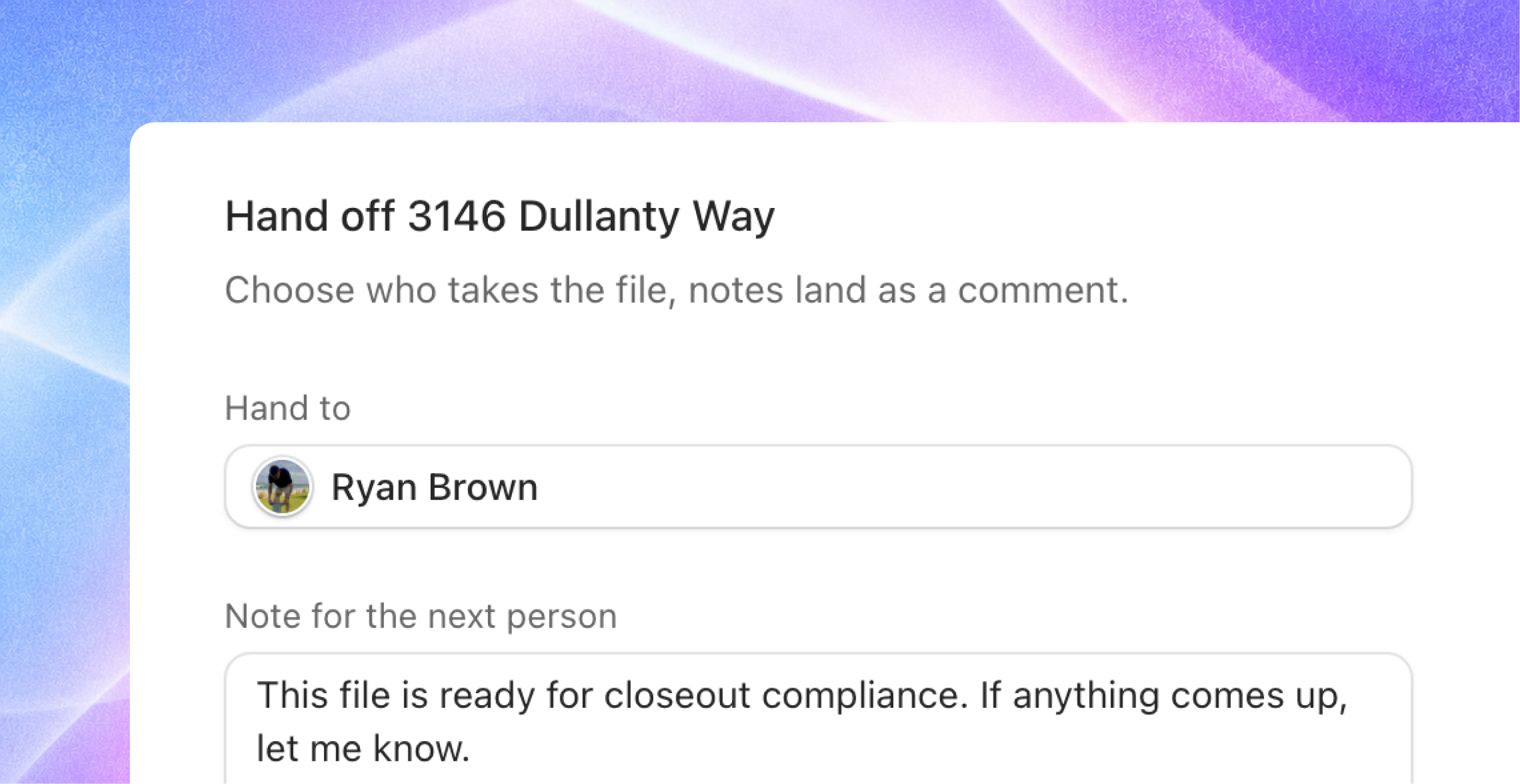
Approve or Send back from the broker's close-out screen. It shows Joymore's sign-off, what is still open, the documents waiting for approval with an Approve all button, and the issues by tier.
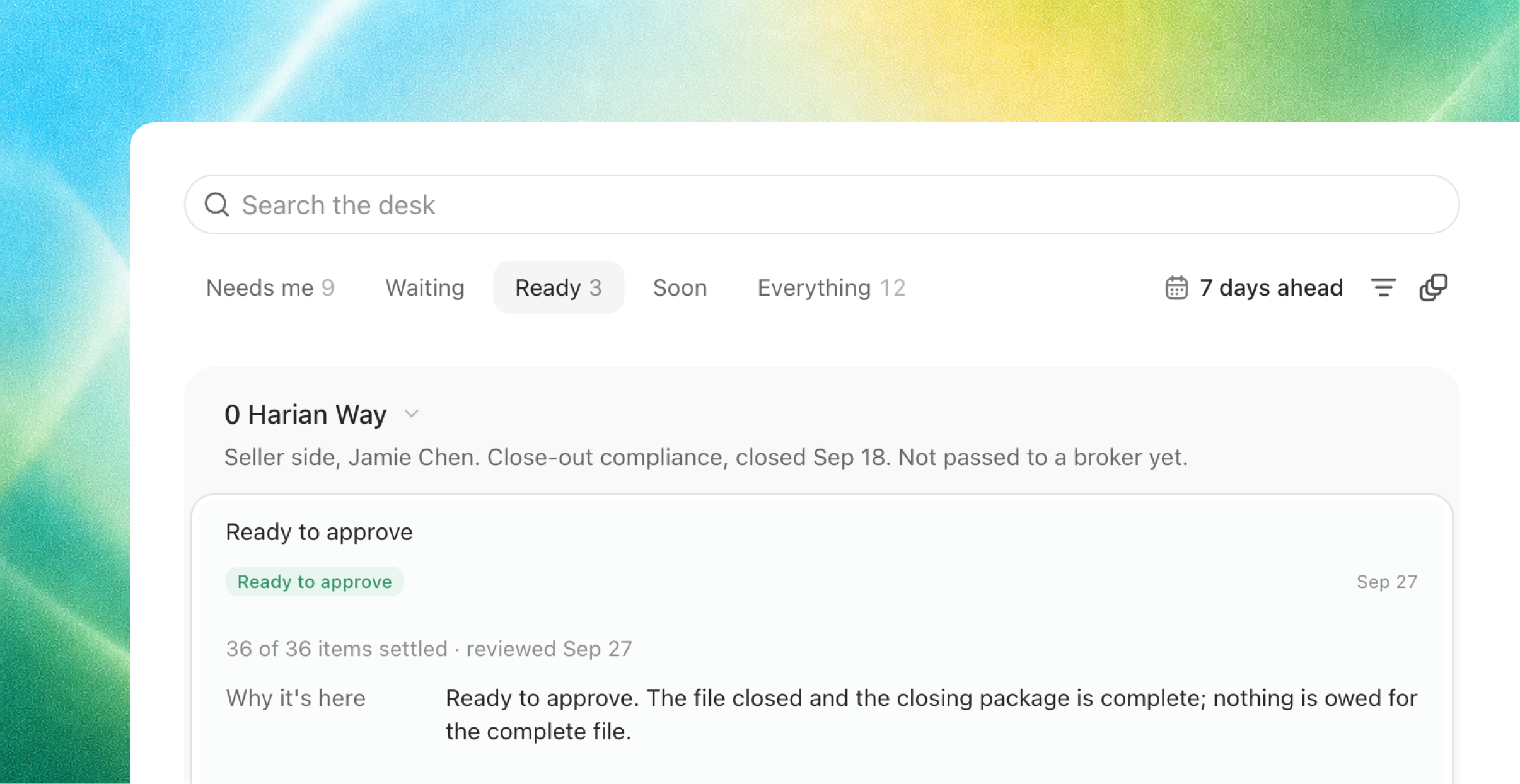
Files that closed before this release are On hold. Joymore does not run anything on them. Each one gets a single row on the supervising broker's Desk asking them to either Approve the file or Start close-out. Until they choose, the file stays exactly as it was.
Transaction coordination, on for everyone
Every file with a coordinator gets a contract-to-close plan. The plan lists what to record, order, schedule, confirm, and chase, organized by side and by phase. Due dates come from the file's own dates, and steps are marked done by the paper that arrives.
Joymore drafts the messages and a person sends them. Introductions, closing instructions, status updates, appraisal access, clear to close, the day-before reminder, and follow-ups when someone has not answered.
Deadlines are part of the work. Deadlines that are close or already passed show up on the coordinator's and the agent's Desk. You can mark each one satisfied, waived, or missed, or move the date.
Settings > Coordination is where you set how the coordinator contacts your clients and how often status updates go out.
Comments
Comment on anything on a file. An item, an issue, a document, a deadline, or the file itself. You can mention teammates and add reactions. If you assign a comment to a teammate, it becomes a to-do on their Desk.
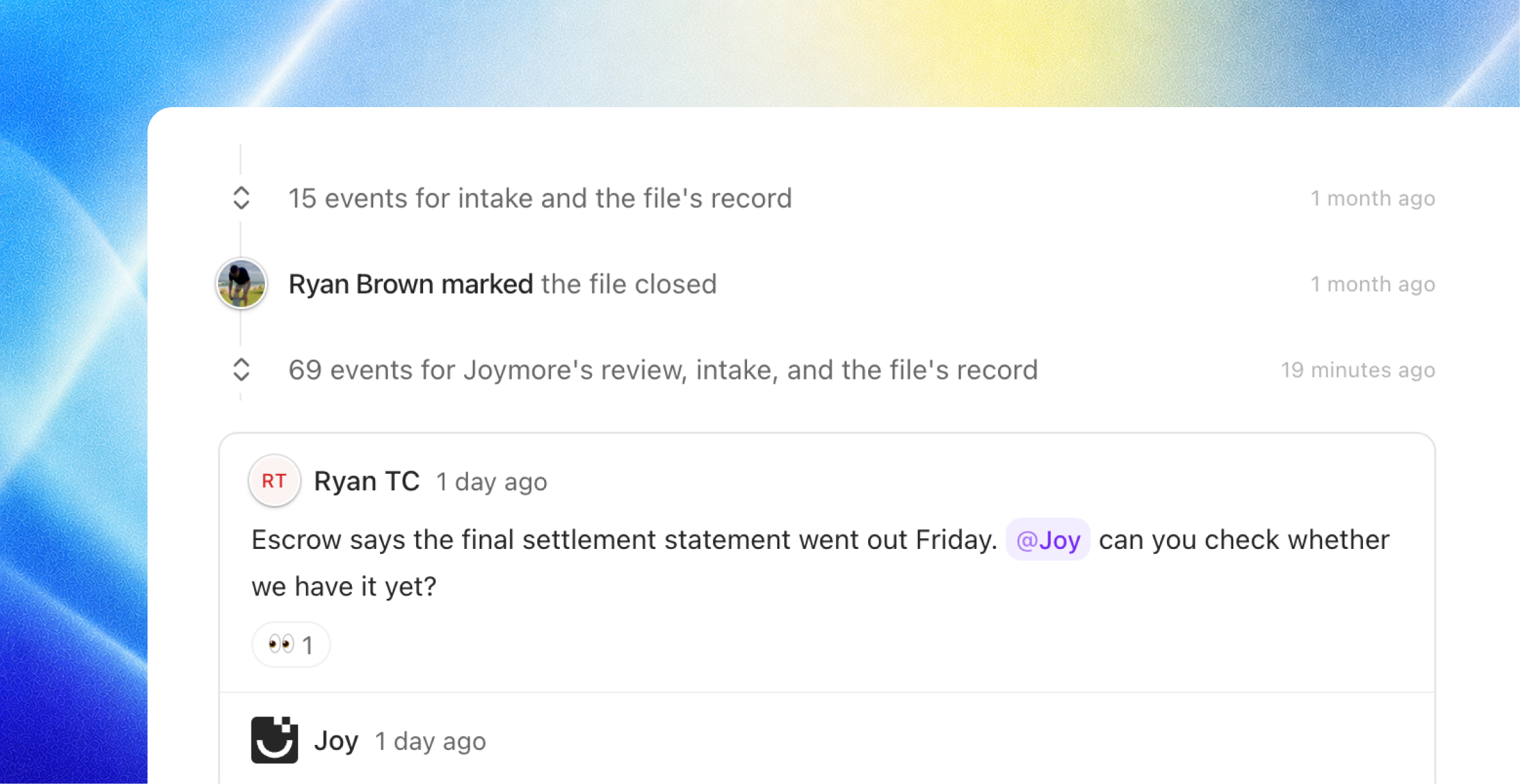
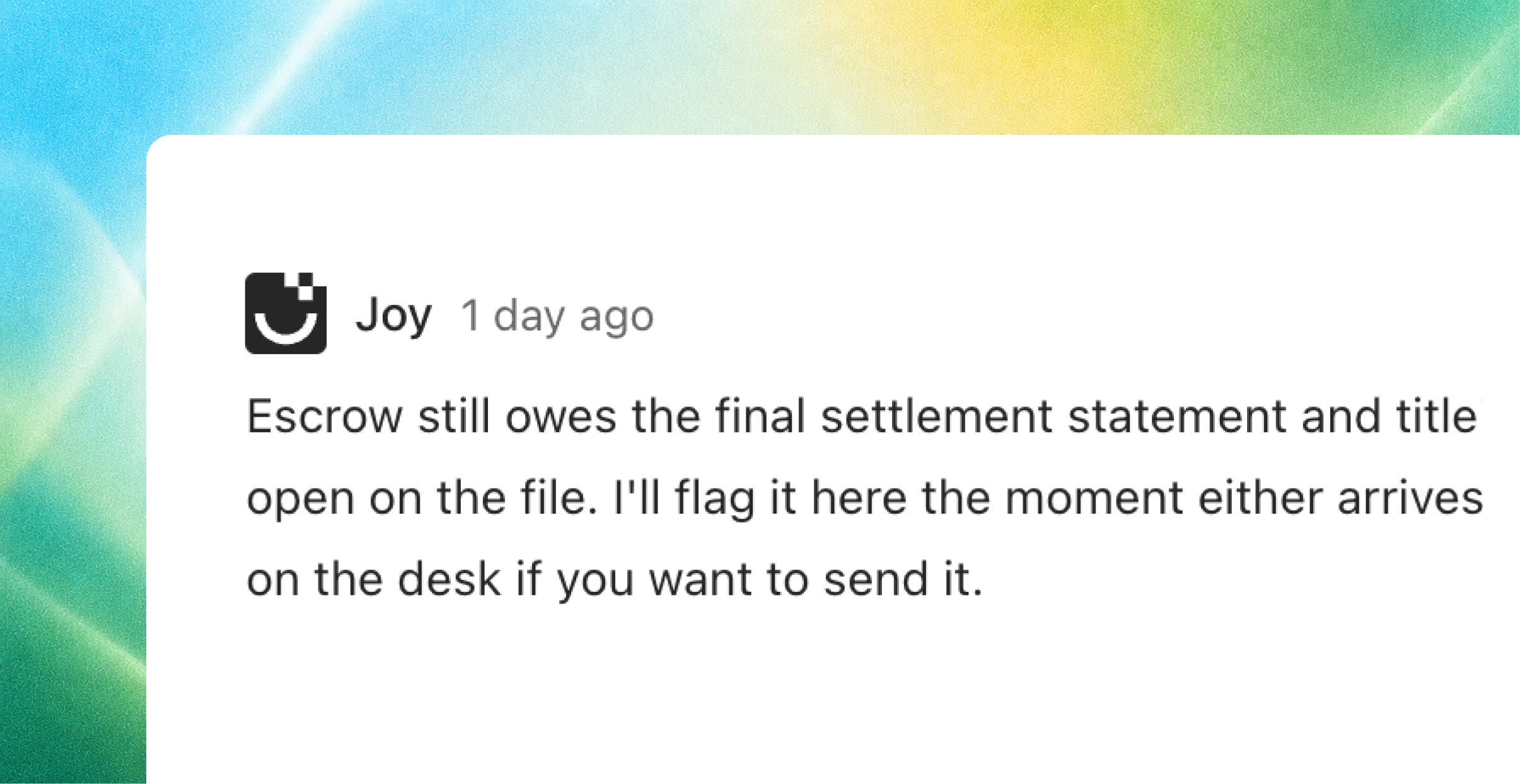
Joymore leaves a short comment after every review, every intake, and every change, written the way a colleague would write it, and answers when you mention Joymore.
Also in this release
Send from your own mailbox. Emails you send from Joymore go out from your connected Gmail or Outlook account, when you have one connected.
Paste into chat. Screenshots and files can be pasted straight into the chat box.
DocuSign Connect. Every completed envelope in your brokerage's DocuSign account can reach Joymore, not only the ones belonging to the person who connected it. Ask us to connect it for you.
Notifications, simplified. There are now two kinds: a file was passed to you, and a comment or to-do was assigned to you. You always see them in the app. Email is on by default for each kind, and you can turn it off.
Mail is email. Sending text messages through Mail is retired. Contacts keep their phone numbers.
What changes on day one. Your home page is the Desk. Every file's documents have been read again and the old issues have been retired. Issues now read Critical, High, Medium, or Low. Files that closed before today are On hold until a broker approves them or starts close-out. Coordination and broker approvals are on for every brokerage. Emails for the two notification kinds start again.